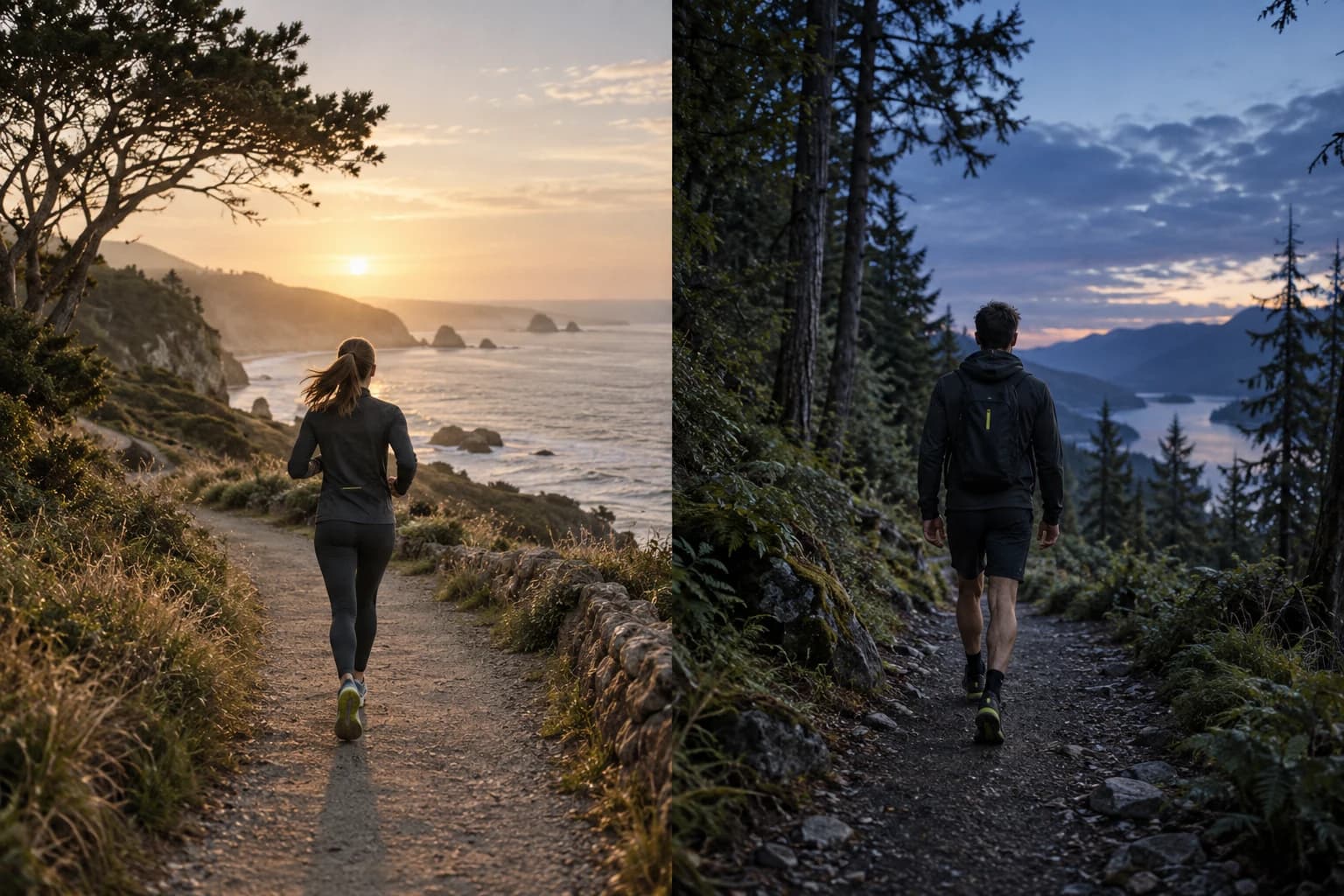
Share Recap
How to turn your walk or run into a shareable recap
Make a Taqvo workout recap with your route, stats and a photo, save it to your iPhone, or revisit a recorded route with Flyover.
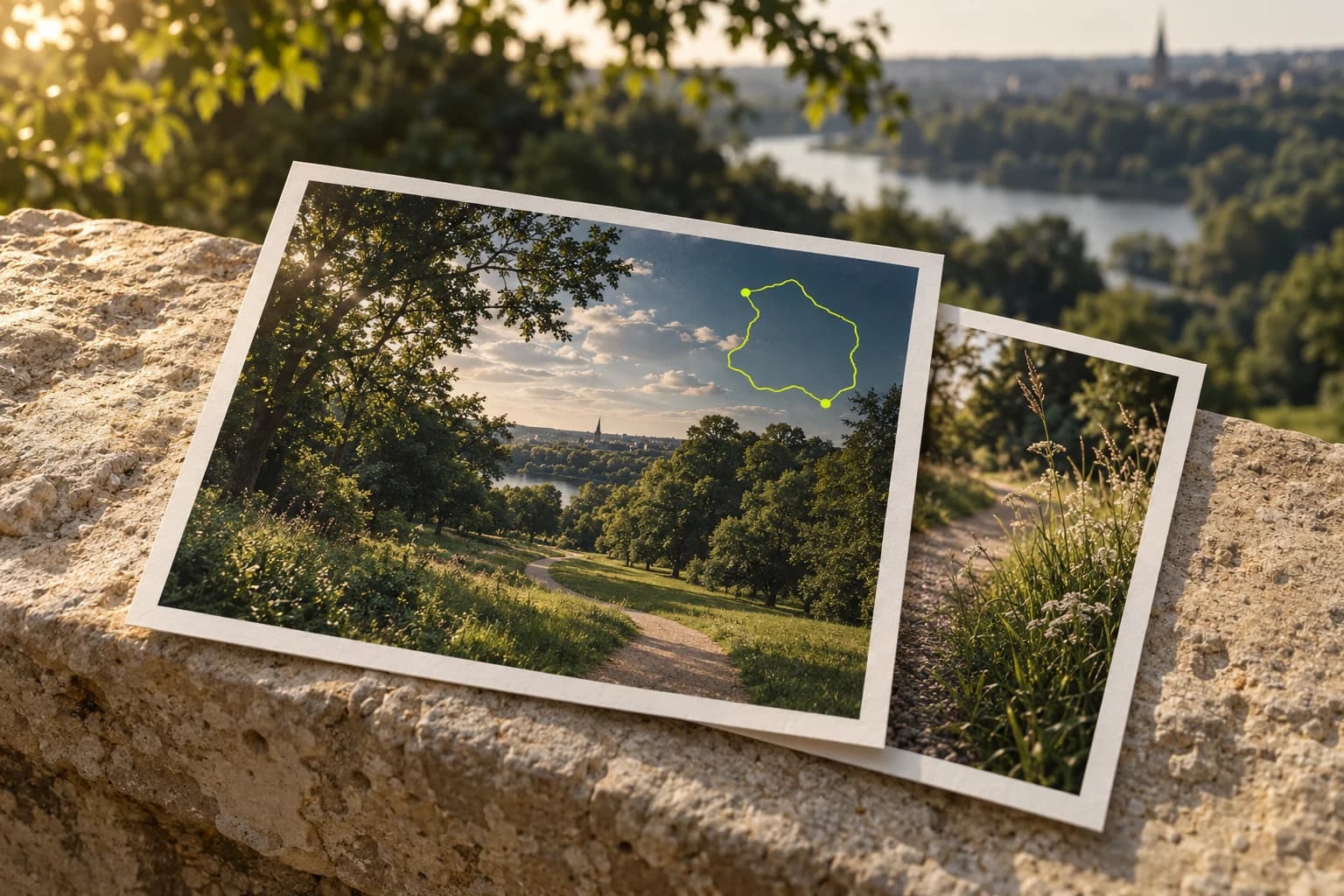
The route tells you where you went. The photo helps you remember the evening. Share Recap brings the two together with your recorded stats, so a walk or run can become an image you keep, send to a friend or post after you finish.
Start with a saved workout
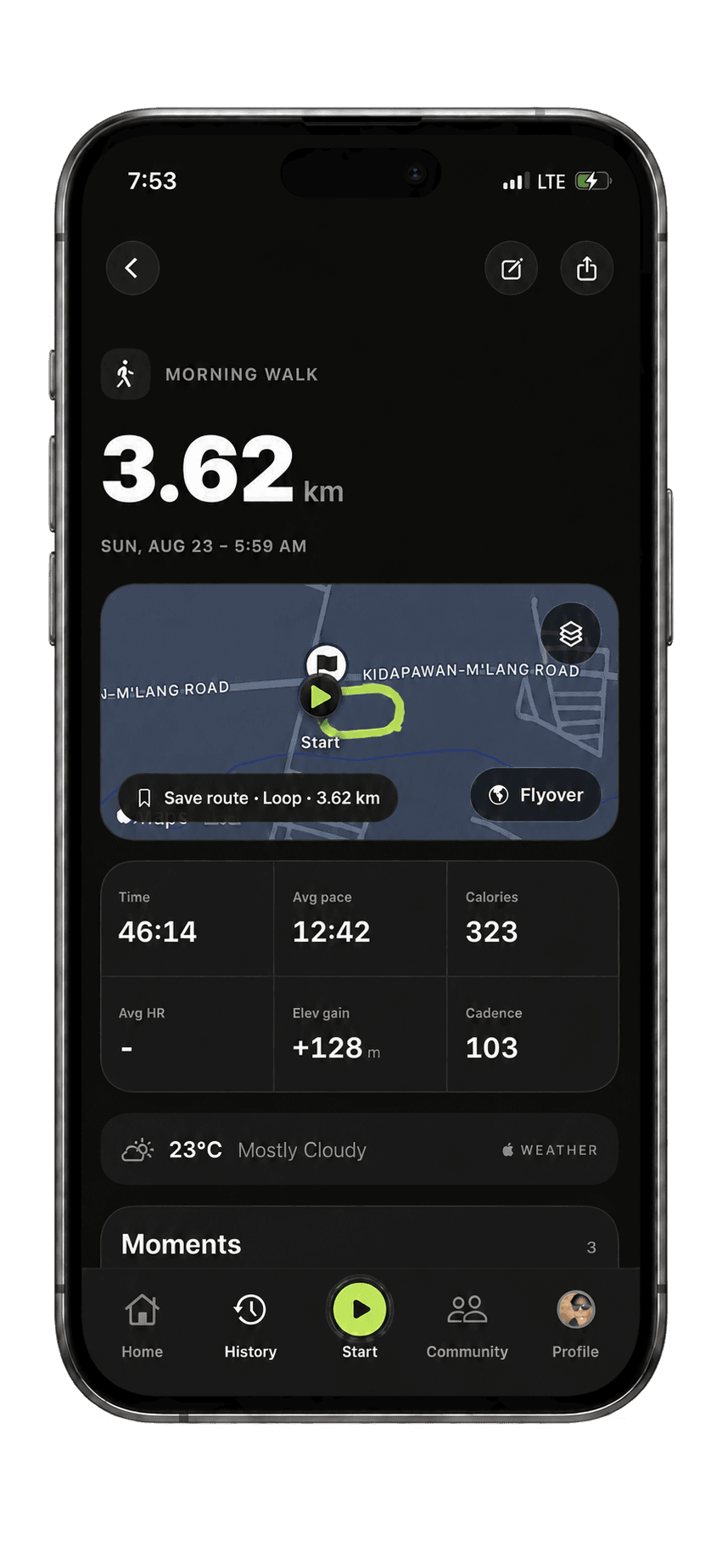
Finish and save your workout, then open it from History. Check that you’ve selected the activity you want to share. Its recap can include the information that was recorded, such as distance, time, average pace and elevation gain.
A workout needs recorded route data to show a route. An indoor session or an imported workout without GPS points won’t gain a map just because you share it. Choose a layout that works with the information you have.
Create and save your recap
You can make the image from the saved workout without starting a new activity.
Open the workout’s share menu.
On the saved workout, tap the share control and choose Share recap.
Choose a card and format.
Swipe through the available designs. Use Story or Feed where the selected design supports those formats, depending on where you want to use the image.
Personalize the selected card.
Tap the card to open its editing options. With a photo design, choose a picture from your walk or run and check how it sits behind the route and numbers.
Check the preview.
Make sure the important stats are readable and the photo crop is the one you intended. Review any route or location information before sharing publicly.
Save or share the image.
Tap Save image to keep a copy on your iPhone, allowing Photos access if prompted. You can also choose one of the available sharing destinations.
Choose a photo that tells the same story
Use something you actually noticed: a familiar bend in the track, a trail view or the sky as you finished. A photo from the workout usually feels more personal than an unrelated landscape. You don’t need a dramatic location for an ordinary walk to be worth remembering.
Look for space where the route and text can remain clear. Busy signs and bright lights directly behind the numbers can make a recap difficult to read. A quieter area of sky or path can give the route and numbers room to stand out.
Before you post, check the image for details you don’t want to make public, including recognizable addresses or other people. Saving an image gives you time to review it before choosing where to send it.
Relive a recorded route with Flyover
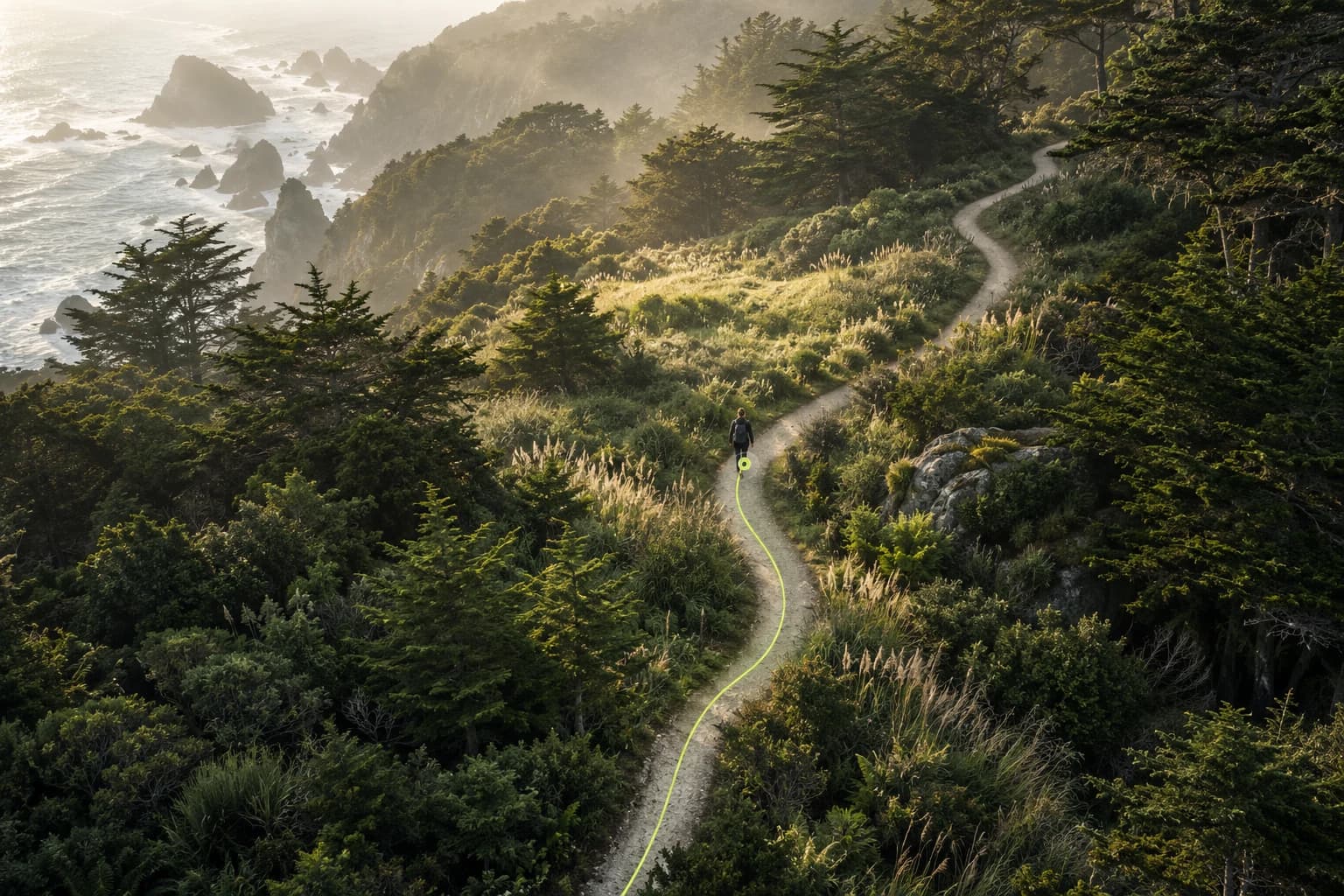
For a workout with route data, open the Flyover control on its saved workout. Flyover replays the route so you can revisit the shape of the outing. Full Flyover replay is part of Taqvo Pro; a limited preview may be available without Pro.
Share Recap creates a still image. Flyover lets you replay the route. You can use the recap to share the result and return to Flyover when you want to revisit the journey itself.
If your recap won’t save
Wait for the selected card’s preview to finish rendering before saving. If saving to Photos is blocked, check Taqvo’s Photos permission in iPhone Settings. If a sharing destination isn’t available, save the image first and open it from Photos in the app you want to use.
Your saved workout remains in History. You can return to it and make another recap with a different photo or format without recording the activity again.
Need a hand? Visit Taqvo support.